
 admin

You just spent thousands of dollars on a high-performance workstation. You unbox it expecting a machine built for raw, unadulterated speed. Instead, you quickly realize that the modern operating system has transformed your local desktop into a data-harvesting billboard.
Out of the box, Windows 11 defaults are mathematically modeled to extract your behavioral data, push recurring cloud subscriptions, and serve algorithmic advertisements directly into your workflow. To turn a new PC into a sterile machine designed strictly for maximum performance, you have to treat the default OS configuration as hostile territory.
Here is an advanced, step-by-step guide to tearing down the corporate bloatware, bypassing telemetry loops, and taking absolute control of your hardware.
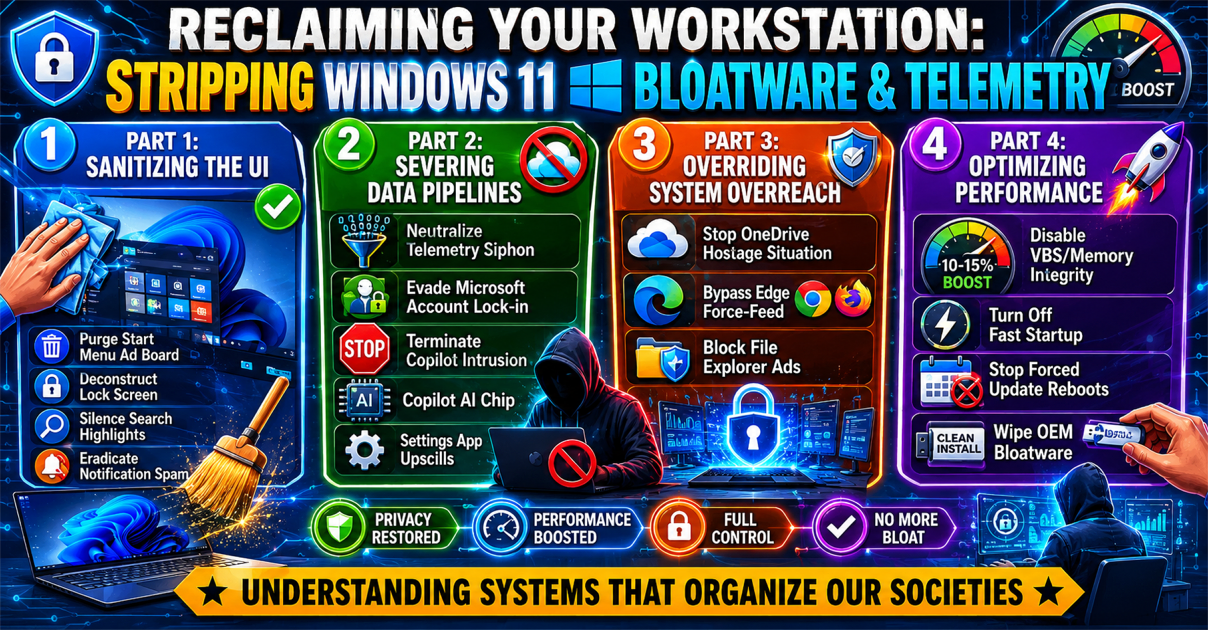
Part 1: Sanitizing the User Interface
A professional workspace should be a zero-friction entry point for deep focus. By default, the Windows user interface is littered with digital distractions engineered to hijack your cognitive attention span.
1. Purge the Start Menu Ad Board
When you open the Start Menu to launch your core tools, half your visual field is polluted with “Pinned” applications like TikTok, Instagram, and Candy Crush. These are not pre-installed local programs taking up disk space; they are paid corporate advertisements waiting for a misclick to trigger a background download.
- The Fix: Right-click and unpin every single piece of corporate bloatware immediately. Then, navigate to
Settings > Personalization > Startand aggressively toggle off “Show recommendations for tips, shortcuts, new apps, and more.”
2. Deconstruct the Lock Screen Billboard
Before you even log in, Microsoft attempts to capture your attention. The default “Windows Spotlight” lock screen is scattered with interactive bubbles and “fun facts” designed to funnel users into Xbox Game Pass subscriptions, Bing search queries, and the Edge browser.
- The Fix: Go to
Settings > Personalization > Lock screenand change your background from “Windows Spotlight” to a static Picture or Solid Color. Ensure you uncheck the buried box that reads “Get fun facts, tips, tricks, and more on your lock screen.”
3. Silence the “Search Highlights” Distraction
Clicking the local search bar to locate an invoice or source file should be instantaneous. Instead, the interface default features trending celebrity news, political clickbait, and algorithmic visual noise designed to generate ad impressions.
- The Fix: Right-click the Taskbar, hover over Search, and completely disable “Show search highlights.” For an even faster experience, consider bypassing Windows Search entirely using ultra-fast, local indexing tools like Everything by Voidtools.
4. Eradicate Notification Spam
Few things break a state of deep flow faster than a system-level pop-up sliding into view to offer “tips” on how to use your device more efficiently.
- The Fix: Navigate to
System > Notifications, scroll to the absolute bottom of the menu, open additional settings, and permanently uncheck “Offer suggestions on how I can set up my device” and “Get tips and suggestions when I use Windows.”
5. Clear the Taskbar Clutter
The default Windows taskbar is heavily polluted with dynamic weather widgets, a redundant Chat icon tied to Microsoft Teams, and system tracking buttons that consume prime visual real estate and run idle background cycles.
- The Fix: Right-click the Taskbar, open Taskbar settings, and ruthlessly toggle off every single default icon except the Start button. Limit your pinned apps strictly to your high-leverage daily tools.
Part 2: Severing the Data Pipelines
Your local files, typing habits, and hardware usage metrics should remain strictly private. Securing your data requires closing the telemetry leaks hardcoded into the OS.
6. Neutralize the Telemetry Data Siphon
Microsoft’s “Optional” diagnostic data runs as a persistent background service, quietly logging app usage patterns, hardware metrics, and keystrokes to train predictive language models and ad networks. The basic Settings app frequently obscures the full scope of this tracking.
- The Fix: For true root-level removal, utilize the Windows Group Policy Editor (available in Windows Pro) or open-source privacy tools like O&O ShutUp10 to completely disable system-level telemetry and diagnostic tracking at the kernel level.
7. Evade the Microsoft Account Lock-In
During initial setup, Windows aggressively forces an internet connection and a Microsoft Account login, permanently tethering your physical hardware to their cloud ecosystem.
- The Fix: Disconnect your internet router or turn off Wi-Fi during the initial Out-of-Box Experience (OOBE). When the forced network screen stops you from proceeding, press
Shift + F10to pull up a command prompt, typeoobe\bypassnro, and hit Enter. The system will reboot, allowing you to create a pure, offline Local Account.
8. Terminate Copilot Intrusion
Microsoft’s generative AI assistant is deeply embedded into the taskbar, search interfaces, and context menus. It actively monitors screen context and reads open windows under the guise of being a helpful assistant. Simply hiding the taskbar icon leaves the background process running.
- The Fix: Disable Copilot at the system level via the Group Policy Editor (
User Configuration > Administrative Templates > Windows Components > Windows Copilot) or through specific registry tweaks to ensure the background monitoring processes are fully terminated.
9. Kill the Settings App Upsells
Monetization has penetrated the configuration layers of the OS. It is common to see unclosable banners urging you to buy Microsoft 365 or sign up for an Xbox subscription directly inside the core system Settings panel.
- The Fix: Navigate to
Privacy & Security > General. Turn off “Show me suggested content in the Settings app” and completely disable your localized Advertising ID so third-party apps cannot track your behavior across the OS.
Part 3: Overriding System Overreach
An operating system should act as an obedient launchpad for your software, not a jealous manager trying to dictate which tools you use.
10. Stop the OneDrive Hostage Situation
Windows frequently defaults to syncing your local Desktop and Documents folders to OneDrive without explicit consent during initial setup. Once the free 5GB limit inevitably fills up, the OS freezes your sync, spamming your desktop with error messages until you provide a credit card for a recurring monthly cloud subscription.
- The Fix: Right-click the OneDrive icon in the taskbar tray, open settings, and Unlink this PC. Afterward, navigate to the Control Panel and uninstall OneDrive entirely. Rely on physical local backups or zero-knowledge cloud providers that you explicitly control.
11. Bypass the Edge Browser Force-Feed
Even when you establish Chrome, Firefox, or Brave as your preferred application, Windows will routinely hijack system links, widget clicks, and local PDF files to force-feed you back into the Microsoft Edge ecosystem.
- The Fix: Set your default browser manually under Settings, and deploy an open-source background utility like MSEdgeRedirect. This tool intercepts hardcoded OS commands and forces system-level links to respect your actual default browser choice.
12. Block File Explorer Injected Ads
The directory system you use to navigate your local hard drive should be a sterile environment. Yet, Microsoft routinely injects bright promotional banners at the top of File Explorer windows pushing premium storage upgrades.
- The Fix: Open File Explorer, click the three dots (
...) to open Options, and select the View tab. Scroll down the advanced settings list and uncheck “Show sync provider notifications.”
Part 4: Optimizing for Raw Hardware Performance
To get the exact speed and stability you paid for, you must override default configurations that throttle your processing power or compromise system uptime.
+-------------------------------------------------------------+
|               WORKSTATION PERFORMANCE CHECKS                |
+------------------------------+------------------------------+
| Virtualization-Based Security| ACTION: Disable Memory       |
| (VBS) / Memory Integrity     | Integrity if running on a    |
| -> Throttles CPU by 10%-15%  | secure, trusted network.     |
+------------------------------+------------------------------+
| Fast Startup Feature         | ACTION: Turn off in legacy   |
| -> Hibernates kernel,        | Power Options to ensure      |
|    compounds memory leaks    | a full RAM flush on shutdown.|
+------------------------------+------------------------------+
| Automatic Update Reboots     | ACTION: Configure strict     |
| -> Interrupts long renders   | Active Hours and pause       |
|    and data compilations     | updates during heavy cycles. |
+------------------------------+------------------------------+
13. Disable VBS to Unlock Raw CPU Speed
When rendering heavy 3D models, compiling massive datasets, or executing compute-heavy workflows, you may notice performance numbers tracking 10% to 15% lower than published hardware benchmarks. This occurs because Windows automatically enables Virtualization-Based Security (VBS) by default.
- The Fix: If you operate on a secure local network and do not require corporate enterprise-level virtualization protections, navigate to
Windows Security > Device Security > Core Isolation detailsand toggle off Memory Integrity. This releases the hardware throttle, allowing your CPU to run completely unrestricted.
14. Turn Off the “Fast Startup” Illusion
When you shut down your PC, you assume you are clearing the system RAM and giving your hardware a fresh start. By default, Windows actually hibernates the system kernel to make the next boot cycle appear a few seconds faster. Over weeks of continuous use, memory leaks compound, and your workstation becomes increasingly unstable.
- The Fix: Open the legacy Control Panel, navigate to Power Options, click “Choose what the power buttons do,” click “Change settings that are currently unavailable,” and uncheck “Turn on fast startup.” This forces a true, deep hardware reset every time you power down.
15. Block Background Application Drain
By default, almost every application installed from the Microsoft Store is granted permission to run silently in the background. They constantly consume valuable RAM, ping external servers for background metrics, and place an unnecessary tax on your processor.
- The Fix: Go to
Settings > Apps > Installed Apps. Click the advanced options for your software and manually switch background permissions to “Never” for everything except your absolutely essential real-time utilities (like audio interfaces or local network tools).
16. Stop the Forced Update Reboot
There are few experiences more frustrating than stepping away from an arduous multi-hour video render or a massive code compilation only to find that Windows decided to force-restart your machine mid-process to apply a minor security patch.
- The Fix: Take absolute ownership of your maintenance schedule. Set your Active Hours strictly within the Windows Update settings panel, and intentionally pause updates for weeks at a time until you choose a designated day to run system maintenance.
17. Wipe OEM Bloatware entirely
If you bought your workstation pre-assembled from a major manufacturer (Dell, HP, Lenovo, etc.), the machine arrives heavily weighed down by third-party trial software, redundant support assistants, background equalizers, and proprietary update centers that bog down your system resources.
- The Fix: Never use a factory operating system configuration out of the box. The moment you unbox a new machine, use a separate device to create a vanilla Windows installation media tool on a formatted USB drive. Wipe the factory drive completely and install a clean, unadulterated version of the OS.
The Ultimate Realization
Accepting factory default settings means choosing to act as an unpaid data node for a trillion-dollar corporation. Modern operating systems are no longer built purely to serve as neutral utilities for your productivity; they are designed as live service ecosystems optimized for recurring monetization, telemetry extraction, and user engagement metrics.
By taking the time to audit your system configuration, strip out background bloat, and shut down data pipelines, you stop being a passive consumer. You transform a hostile, noisy environment back into what it was always meant to be: a sterile, hyper-focused, high-performance workstation built exclusively for raw human output.
Source: Katyayani Shukla, on X (@aibytekat)